
Quick messages
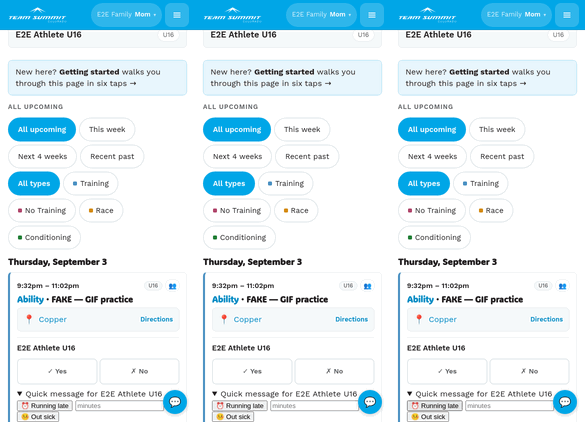
Each event card has a Quick message for name section below the RSVP buttons — tap it open and you get a row of pre-written templates. Tap one to send it.
It only appears from about 4 hours before the event until half an hour after it ends. Outside that window there’s nothing to open.
Screenshot: quick-message buttons under RSVP rowCommon templates
The exact list varies by club, but typically:
- 🤧 Out sick — your athlete won’t be there. Also flips their RSVP to “No” automatically.
- 🚫 Not coming today — same, without the illness.
- ⏰ Running late — give the coach a heads up that you’re behind.
- 🚗 On the way — for races / arrivals.
- 🚪 Picking up early
- 🛠️ Equipment issue
Some of them let you add a short note. There is no free-text “Other”.
What happens when you tap one
- The message is logged to the event so other parents in your group
can see it (small
📨 Sarah Smith · Out sick — 10:42amline on the event card). - The message is posted to your coach’s Telegram channel, so the coach sees it on their phone. (Coaches subscribe to the channel; they see it within seconds.)
- Other parents do NOT get phone push for these. Quick messages are coach-targeted, not broadcasts. You won’t be “spamming the group” by tapping Out sick.
When can you send them
Most templates are restricted to a window around the event:
All templates share one window: from 4 hours before the event until 30 minutes after it ends.
Outside that, the quick-message section isn’t on the card at all. Just RSVP instead.
Rate limit
To prevent accidental spam, you can send 3 per event per hour. After that it asks you to call your coach directly instead. This rarely trips unless something’s wrong.
Editing or deleting
Quick messages can’t be deleted from your end. If you tapped one by mistake, just send another (e.g. tap “On the way” right after a stray “Out sick”). Or contact your coach.